If your organisation operates in more than one language — English and French, Spanish and English, or any combination — SharePoint's multilingual pages feature lets you serve different language versions of your intranet content from the same site. It's a powerful feature when it works well, but it comes with some important caveats that are worth understanding before you turn it on.
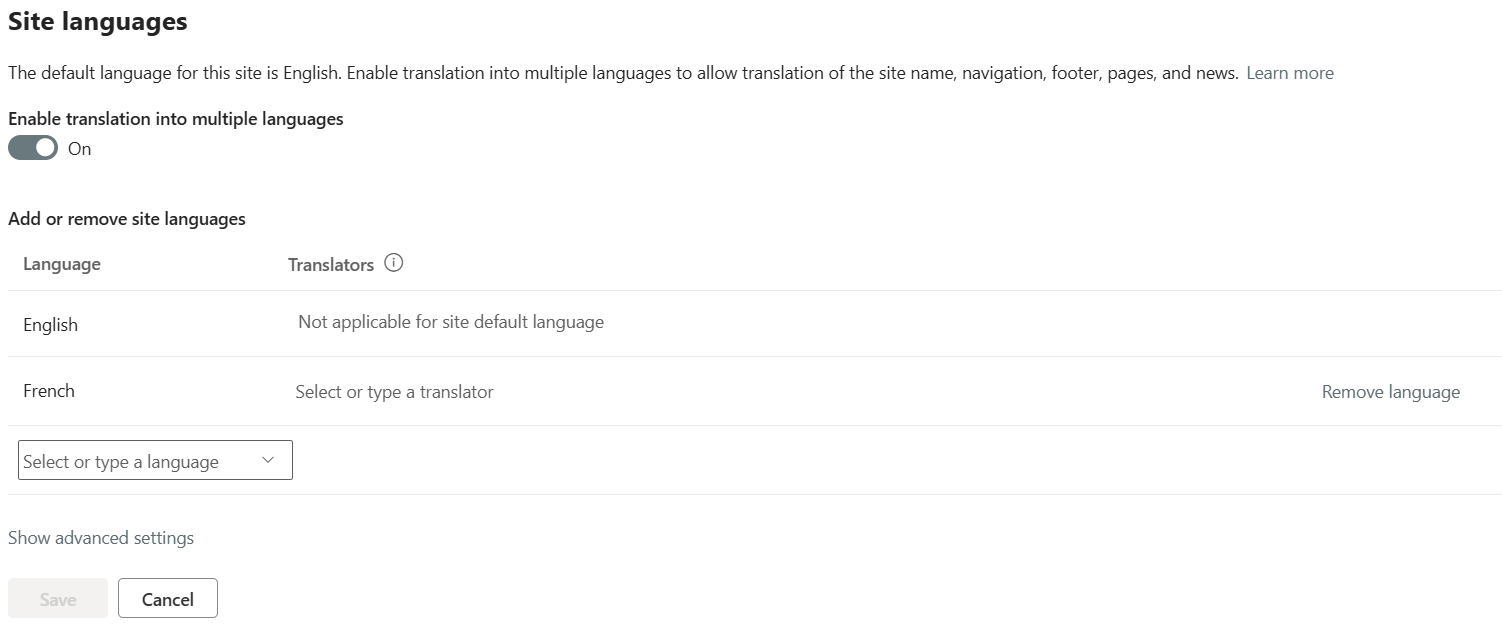
How to Enable Multilingual
The multilingual pages feature is enabled at the site level. Go to:
Site Settings → Language Settings
Or from the gear icon → Site information → View all site settings → Language settings.
Toggle "Enable translation into multiple languages" to On, then add the languages you want to support. For each language you add, you can assign one or more Translators — SharePoint users who will be notified when pages need translating.
The default language of the site is set when the site is created and cannot be changed afterwards — so choose carefully upfront.
What It Does
Once enabled, SharePoint creates a translation workflow for your site pages and news posts. Here's what you get:
Language-specific pages
For each page on the default language site, SharePoint can create a linked translation page in each supported language. The translation pages live in language-specific folders within the Site Pages library — /SitePages/fr/ for French, /SitePages/es/ for Spanish, and so on — or within nested folders where pages may already be stored.
Translation notification workflow
When you publish or update a page in the default language, assigned translators for each language receive an email notification prompting them to update the translation. The notification includes a link directly to the translation page.
Language-aware navigation
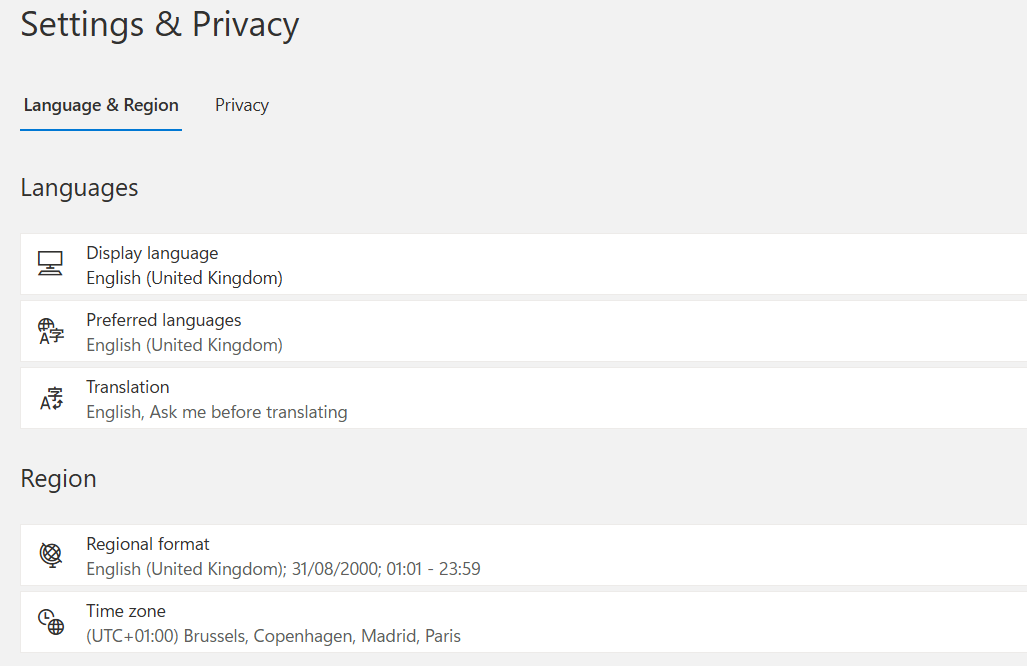
When a user browses the site in their preferred language (set in their Microsoft 365 profile), the site navigation, site name, and footer automatically display in that language — provided those elements have been translated.
Language toggle
Users can switch between language versions of a page using a language picker that appears on the page. The URL changes to reflect the language — the English page might be at /SitePages/Home.aspx and the French translation at /SitePages/fr/Home.aspx.
News translation
The same mechanism applies to SharePoint news posts. When you publish a news article in the default language, translators are notified to create the translated version.
What It Doesn't Do — Important Limitations
This is where many people get caught out. The multilingual feature is not automatic translation. It's a workflow for managing human translation.
Pages are linked but maintained separately
The English page and the French page are separate files. They're linked — SharePoint knows they're translations of each other — but the content is maintained independently. If you update the English page, the French page does not update automatically. The translator receives a notification and must manually update the French version. Until they do, the French page shows a banner warning that it may be out of date.
Web parts are not translated
The page layout and web parts are shared between language versions — you edit the same page structure. But the content within text web parts, image captions, and other content areas must be manually edited on each language version separately.
The default language cannot be changed
Once set at site creation, the default language is fixed. If you create a site in English and later want French to be the primary language, you cannot change this without recreating the site.
Navigation must be translated manually
Site navigation nodes need to be translated manually in the Language Settings. They don't inherit translations automatically.
Not all site types support it fully
Multilingual pages work best on Communication Sites. Team Sites have more limited support for the feature.
The Translator Role
The Translator assigned to a language doesn't need any special permissions beyond being a member of the site with edit access. They receive email notifications when pages need translating and are responsible for keeping their language version up to date.
Assigning a translator is optional — you can leave it blank and manage translation manually — but the notification workflow is one of the most useful parts of the feature for keeping translations current.
If no translator is assigned, pages can still be translated but nobody receives automatic notifications when the source page changes.
Translation Status
SharePoint tracks the translation status of each page. From the Pages library you can see which pages have translations and whether those translations are up to date or need updating. This gives site owners visibility of the overall translation health of the site without checking each page individually.
What Gets Translated — and What Doesn't
| Element | Translated? |
|---|---|
| Page content (text, images) | ✅ Manually, by translator |
| Site navigation | ✅ Manually, in Language Settings |
| Site name | ✅ Manually, in Language Settings |
| Footer | ✅ Manually, in Language Settings |
| Web part configurations | ❌ Shared across languages |
| List and library content | ❌ Not supported by this feature |
| Site pages URL structure | ✅ Automatic (/fr/, /es/ subfolders) |
| News posts | ✅ Same workflow as pages |
| Page metadata (title, description) | ✅ Manually on each translation page |
The Practical Reality
Running a genuinely multilingual SharePoint intranet is a significant ongoing commitment. The technical setup is straightforward — enabling the feature and adding languages takes minutes. The ongoing maintenance is where the work is.
Every time content changes in the default language, someone needs to update every translation. For a small intranet with 20 pages and two languages, this is manageable. For a large intranet with hundreds of pages and three or four languages, it requires a proper translation process, assigned owners, and regular audits.
Before enabling multilingual, ask:
- Who will maintain each language version?
- How will you manage the translation backlog when pages are updated frequently?
- Is the content stable enough that translations won't need constant updating?
When Multilingual Makes Sense
The feature is a good fit when:
- Your organisation genuinely has users who work in different languages
- You have people available to maintain translations
- Content is relatively stable — policies, procedures, navigation rather than daily news
It's less suitable when you need real-time translation of rapidly changing content, or when you have many languages and limited translation resource.
Need help setting up a multilingual SharePoint intranet? Get in touch and we'll work through it together.