If you've been working with SharePoint metadata for a while, you've probably used Choice columns to create dropdown lists — Department, Status, Document Type. They work well enough for simple scenarios. But at some point you hit their limits, and that's when the Term Store becomes the right tool.
The Term Store is SharePoint's managed metadata service — a centralised, tenant-wide taxonomy that any site in your organisation can use. This article explains what it is, how it differs from a Choice column, and when it's worth the extra setup.
Choice Column vs Term Store — What's the Difference?
A Choice column is created at the list or library level. It's quick to set up and works fine when:
- The values are simple and unlikely to change
- Only one site or library needs them
- You don't need a hierarchy of values
The Term Store is a different beast entirely. It lives at the tenant level — meaning the same set of terms can be used across every site in your organisation. And it has capabilities that a Choice column simply can't match.
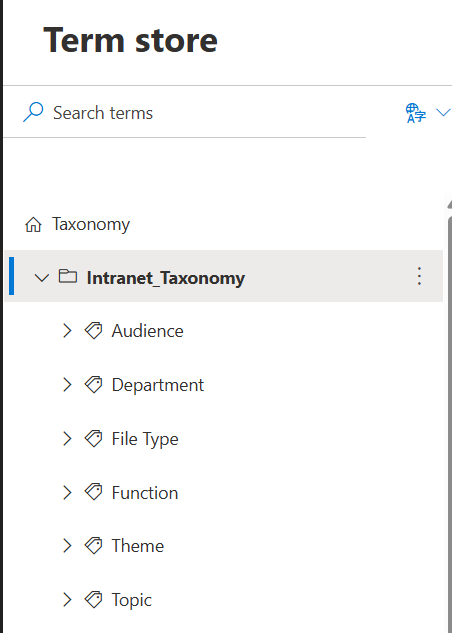
The Key Advantages of the Term Store
It's global
This is the fundamental difference. A Choice column you create in one library doesn't exist in any other library — you have to recreate it every time. A Term Store term set is created once and available everywhere. If you have a list of departments that needs to be consistent across 20 sites, the Term Store is the answer.
Renaming propagates automatically
This is one of the most practically useful features. If you rename a term in the Term Store — say a department changes its name — every document or list item tagged with the old name automatically updates to the new name. With a Choice column, renaming the option doesn't update any of the existing tagged items. You're left with a mix of old and new values across your content.
Hierarchies
The Term Store supports hierarchies of terms — a parent term with child terms underneath, and further levels below that. Useful for things like geographic structure (Country → Region → City), organisational structure (Division → Department → Team), or product categories (Category → Subcategory → Product). Choice columns are flat — no hierarchy possible.
Multilingual support
Each term can have translations in multiple languages. If your organisation has English and French sites, the same term displays in the user's language automatically — without maintaining separate columns per language. This is one of the Term Store's most powerful features for international or multilingual environments.
Synonyms
You can define synonyms for a term — alternative names that all resolve to the same master term. If people in your organisation call the same thing by different names, synonyms ensure they're always tagging with a consistent value even if they type it differently.
Hide and deprecate terms
When a term is no longer relevant — a client you no longer work with, a product line that's been discontinued — you can hide it so users can't select it for new items, while existing tagged items retain their value. With a Choice column, removing an option breaks existing items that used it.
Import via CSV
If you have hundreds or thousands of terms, you can import them from a CSV file rather than typing them in one by one. Practical for large taxonomies like product catalogues, location lists, or organisational hierarchies.
Sorting
By default, Term Store terms can be sorted automatically in alphabetical order. Choice column values display in the order you entered them — if you want alphabetical you have to manage it manually every time.
When Should You Use the Term Store?
The Term Store is worth the setup when:
- The same metadata needs to be consistent across multiple sites — if you have a Department column that appears in 10 different libraries across 5 different sites, the Term Store ensures they're always in sync
- Values will change over time and you need those changes to propagate — renaming terms, deprecating old ones
- You need a hierarchy — any taxonomy with parent/child relationships
- You're building a multilingual environment — the Term Store's translation capability is essential here
- You're working at enterprise scale — large organisations with complex taxonomies
When is a Choice column fine? When the values are simple, stable, and only needed in one place. Not everything needs the Term Store.
Who Can Set Up the Term Store?
This is a practical point worth knowing before you get started. Access requirements differ depending on which level you're working at:
Tenant-level Term Store — requires either the SharePoint Administrator role in the Microsoft 365 admin center, or a user explicitly assigned as a Term Store Administrator in the SharePoint admin center. In larger organisations this is typically the IT or SharePoint admin team.
Site-level Term Store — managed by Site Collection Administrators on that specific site. No tenant-level permissions required, making it accessible without involving central IT.
If you want to use the tenant Term Store but don't have access, you'll need to either request the Term Store Administrator role from your SharePoint admin, or fall back to the site-level Term Store as a starting point.
The Site-Level Term Store
Worth knowing — if you don't have access to the tenant-level Term Store (common in large organisations where the tenant is managed centrally), each SharePoint site has its own local Term Store. It works the same way but is scoped to that site rather than the whole tenant. A useful fallback if you need the features but can't touch the tenant configuration.
Term Store and Search
Managed metadata from the Term Store has a significant advantage in search. SharePoint's search engine understands the relationships between terms and their synonyms, parent and child terms. A search for a parent term can surface results tagged with child terms. With a Choice column, search treats each value as an independent string — no understanding of relationships.
This matters more as your content grows. A well-structured Term Store taxonomy makes your content significantly more discoverable — both through SharePoint search and through Copilot AI.
The Practical Starting Point
If you're new to the Term Store, the best starting point is identifying one or two metadata values that are genuinely shared across multiple sites — typically something like Department, Location, or Document Type. Create a term group for your organisation, a term set for that metadata, add your terms, and connect it to a managed metadata column in your libraries.
Once you've done it once, the pattern is clear and the value is obvious.
Need help designing your organisation's SharePoint taxonomy? Get in touch and we'll work through it together.