MessageBanner — PnP Modern Search
The requirement was to deliver a banner that could be used for urgent announcements on the company intranet. If there are no announcements the webpart should not be visible.
A list-driven message banner for SharePoint intranets, built with PnP Modern Search and a custom Handlebars template. Supports multiple severity levels, multilingual content, and automatically minimises when there are no active messages.
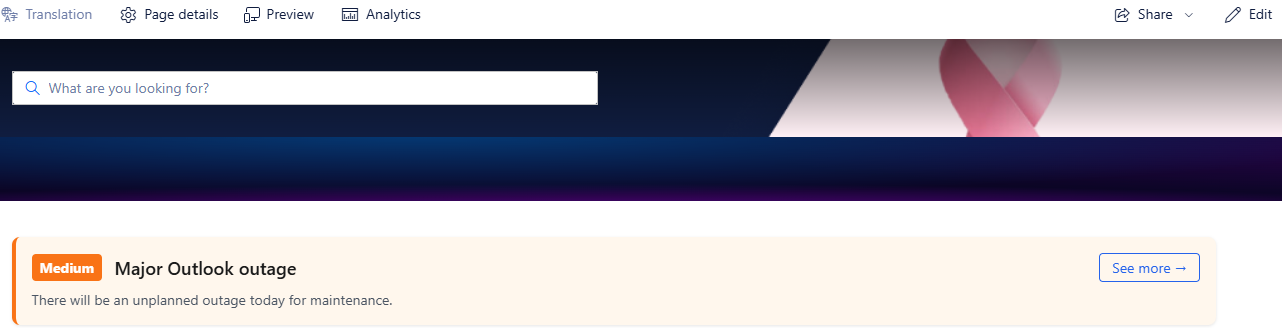
Overview
The MessageBanner displays urgent or important messages at the top of the intranet homepage. Messages are managed entirely through a SharePoint list — no page editing required. Content editors set a message to Active to show it, and Inactive to hide it. An optional expiration date can be set so messages stop showing automatically.
The solution uses two PnP Modern Search Results web parts — one on the English homepage and one on the French homepage — each pointing to the same list but configured with different slot mappings to display the correct language content.
The List — MessageBanner
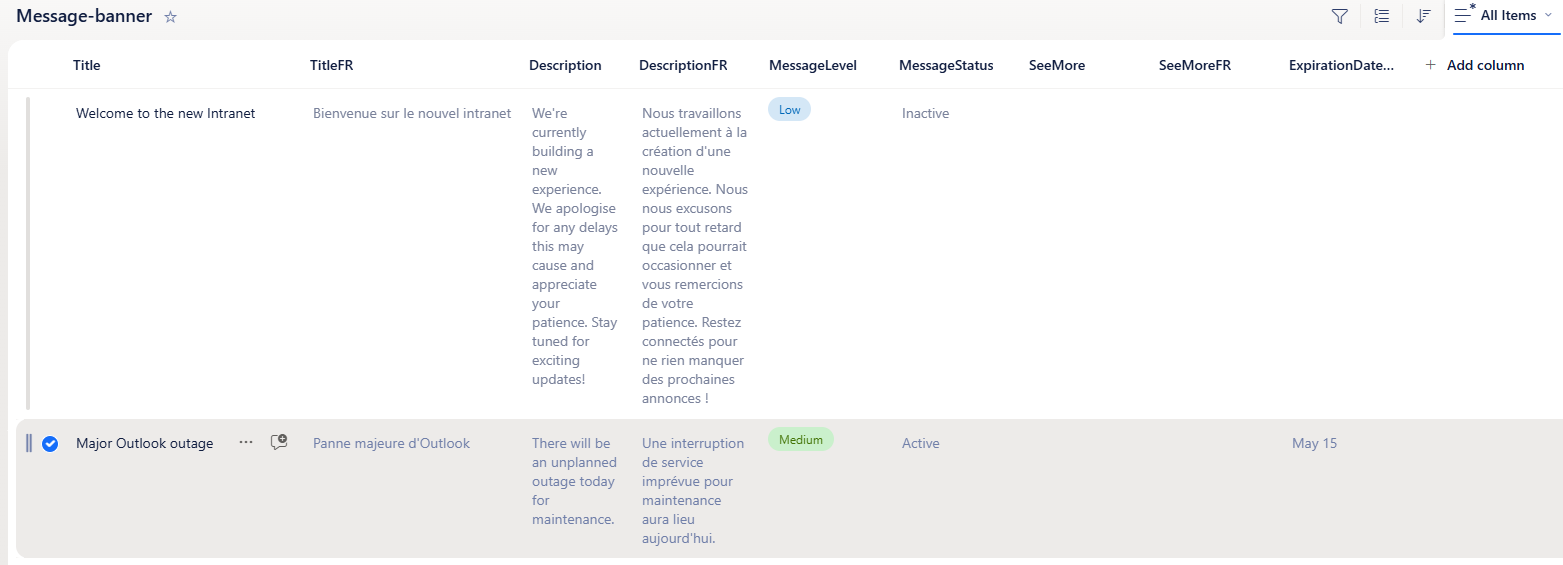
The list contains the following columns:
| Column | Type | Purpose | Managed Property |
|---|---|---|---|
| Title | Single line of text | English message title | Title |
| TitleFR | Single line of text | French message title | RefinableString105 |
| Description | Multiple lines of text | English message body | Description |
| DescriptionFR | Multiple lines of text | French message body | RefinableString106 |
| SeeMore | Hyperlink | English link to related page | — |
| SeeMoreFR | Hyperlink | French link to related page | — |
| MessageLevel | Choice (Low / Medium / High) | Controls severity colour and badge | RefinableString101 |
| MessageStatus | Choice (Active / Inactive) | Controls visibility — filtered in query | RefinableString100 |
| ExpirationDate | Date | Optional — message stops showing after this date | RefinableDate01 |
Severity Levels
Three severity levels drive the visual styling of the banner:
- High — Red background and badge. Used for critical outages or urgent announcements.
- Medium — Orange background and badge. Used for planned maintenance or important notices.
- Low — Green background and badge. Used for general information.
Web Part Configuration
First be sure to add the above columns including the RefinableStrings to the Selected Properties of the Search Results web part.
Query Template
Both the English and French web parts use the same query, scoped to the MessageBanner list and filtered to Active messages only:
{searchTerms} RefinableString100:"Active" Path:"https://yourtenant.sharepoint.com/sites/yoursite/Lists/MessageBanner"RefinableString100 is the managed property mapped to the MessageStatus column.
Hide When Empty
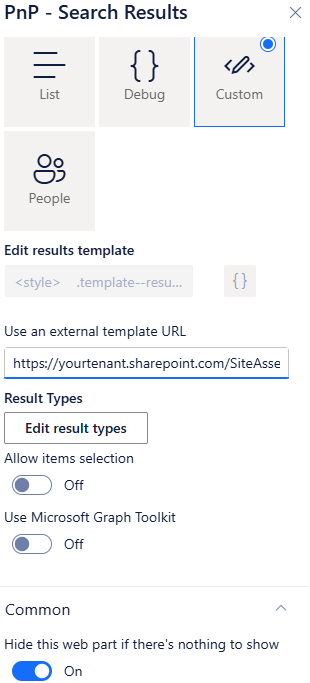
The web part is configured with "Hide this web part if there's nothing to show" enabled. When no Active messages exist the web part takes up minimal space on the page — no empty containers or blank sections visible to users.
Layout Slots — English Web Part
| Slot Name | Mapped Property | Source Column |
|---|---|---|
| Title | Title |
English title |
| Description | Description |
English description |
| Message Level | RefinableString101 |
MessageLevel |
Layout Slots — French Web Part
| Slot Name | Mapped Property | Source Column |
|---|---|---|
| Title | RefinableString105 |
TitleFR |
| DescriptionFR | RefinableString106 |
DescriptionFR |
| Message Level | RefinableString101 |
MessageLevel |
Handlebars Templates
The templates are stored as .html files in a Site Assets library (PnP_CustomTemplates) and referenced via the External Template URL option in the web part. This means templates can be updated in one place without editing the web part on the page.
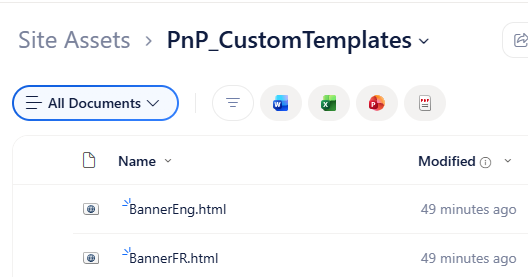
The two templates are nearly identical. The key differences are:
- The French template renders the badge text in French — Élevé / Moyen / Faible — based on the MessageLevel value
- The French template uses the DescriptionFR slot for the message body
- The Title slot resolves differently on each web part based on the slot mapping above
Inserting the templates and Hiding the webpart
Handlebars Template — French
<style>
    .template--results {
        display: flex;
        flex-direction: column;
        gap: 1rem;
    }
    .warning-item {
        padding: 1rem;
        border-radius: 0.5rem;
        border-left-width: 4px;
        border-left-style: solid;
        box-shadow: 0 1px 3px rgba(0, 0, 0, 0.1);
    }
    .warning-header {
        display: flex;
        align-items: center;
        justify-content: space-between;
        margin-bottom: 0.5rem;
    }
    .warning-header-left {
        display: flex;
        align-items: center;
    }
    .warning-level-badge {
        padding: 0.25rem 0.5rem;
        border-radius: 0.25rem;
        margin-right: 0.75rem;
        font-weight: bold;
        color: #ffffff;
        font-size: 0.875rem;
    }
    .warning-title {
        font-size: 1.125rem;
        font-weight: 600;
        color: #1a1a1a;
    }
    .warning-content {
        color: #4b5563;
    }
    .warning-more-btn {
        margin-left: auto;
        padding: 0.25rem 0.75rem;
        border-radius: 0.25rem;
        border: 1px solid #2563eb;
        color: #2563eb;
        font-size: 0.875rem;
        text-decoration: none;
        white-space: nowrap;
    }
    .warning-more-btn:hover {
        background-color: #2563eb;
        color: #ffffff;
    }
    /* Warning Level styles */
    [data-warning-level='High'] {
        border-left-color: #dc2626;
        background-color: #fef2f2;
    }
    [data-warning-level='High'] .warning-level-badge {
        background-color: #dc2626;
    }
    [data-warning-level='Medium'] {
        border-left-color: #f97316;
        background-color: #fff7ed;
    }
    [data-warning-level='Medium'] .warning-level-badge {
        background-color: #f97316;
    }
    [data-warning-level='Low'] {
        border-left-color: #16a34a;
        background-color: #f0fdf4;
    }
    [data-warning-level='Low'] .warning-level-badge {
        background-color: #16a34a;
    }
</style>
<div class="template">
    {{#if @root.properties.showSelectedFilters}}
        <pnp-selectedfilters
            data-filters="{{JSONstringify filters.selectedFilters 2}}"
            data-filters-configuration="{{JSONstringify filters.filtersConfiguration 2}}"
            data-instance-id="{{filters.instanceId}}"
            data-operator="{{filters.filterOperator}}"
            data-theme-variant="{{JSONstringify @root.theme}}"
        ></pnp-selectedfilters>
    {{/if}}
    <div class="template--header">
        {{#if @root.properties.showResultsCount}}
            <div class="template--resultCount">
                <label class="ms-fontWeight-semibold">{{getCountMessage @root.data.totalItemsCount @root.inputQueryText}}</label>
            </div>
        {{/if}}
        <div class="template--sort">
            <pnp-sortfield
                data-fields="{{JSONstringify @root.properties.dataSourceProperties.sortList}}"
                data-default-selected-field="{{sort.selectedSortFieldName}}"
                data-default-direction="{{sort.selectedSortDirection}}"
                data-theme-variant="{{JSONstringify @root.theme}}">
            </pnp-sortfield>
        </div>
    </div>
    <div class="template--results">
        {{#each data.items as |item|}}
            <pnp-select
                data-enabled="{{@root.properties.itemSelectionProps.allowItemSelection}}"
                data-index="{{@index}}"
                data-is-selected="{{isItemSelected @root.selectedKeys @index}}">
                <template id="content">
                    {{#> resultTypes item=item}}
                        <div class="warning-item" data-warning-level="{{slot item 'RefinableString101'}}">
                            <div class="warning-header">
                                <div class="warning-header-left">
                                    {{#if (eq (slot item 'RefinableString101') 'High')}}
                                        <span class="warning-level-badge">Élevé</span>
                                    {{else if (eq (slot item 'RefinableString101') 'Medium')}}
                                        <span class="warning-level-badge">Moyen</span>
                                    {{else}}
                                        <span class="warning-level-badge">Faible</span>
                                    {{/if}}
                                    <span class="warning-title">{{slot item @root.slots.Title}}</span>
                                </div>
                                <a href="{{slot item @root.slots.Path}}" class="warning-more-btn">En savoir plus →</a>
                            </div>
                            <div class="warning-content">
                                {{slot item @root.slots.DescriptionFR}}
                            </div>
                        </div>
                    {{/resultTypes}}
                </template>
            </pnp-select>
        {{/each}}
    </div>
</div>
See More button
A "See more" button sits on the right side of the banner header, linking to a related news page or announcement. The button only renders if the SeeMore slot is populated — messages without a linked page show no button.
French Homepage
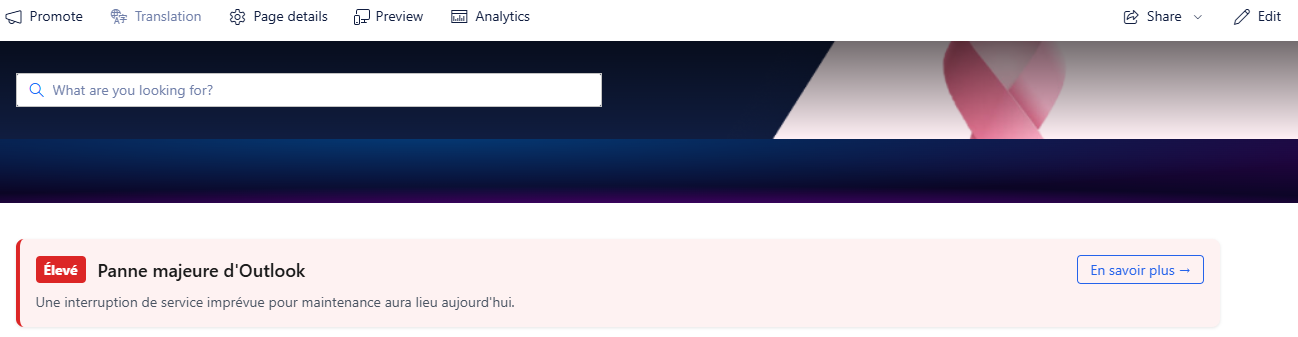
The French web part uses slot mappings to display TitleFR and DescriptionFR content, with the badge text hardcoded in French in the Handlebars template. The same MessageLevel value (High/Medium/Low) drives the colour styling on both web parts — only the displayed text differs.
Expiration Date
An optional ExpirationDate column allows messages to stop showing automatically without manual intervention. To implement automatic expiry, the query can be extended to filter on a mapped date managed property:
{searchTerms} RefinableString100:"Active" RefinableDate01>=today Path:"..."Alternatively a scheduled Power Automate flow can run daily, check for items where ExpirationDate has passed, and set MessageStatus to Inactive — keeping the list data clean and giving editors clear visibility of what is and isn't active.
Want to create the list? Use the Create MessageBanner List PnP PowerShell script to provision the list and all required columns automatically.