Translation Drift Dashboard
A SharePoint Framework web part that surfaces translation drift across a multilingual SharePoint Online site — showing which pages are in sync with their source language, which are stale, and which have no translation at all. Built to support governance of multilingual intranets where keeping language versions aligned is an ongoing operational challenge.
The Problem It Solves
SharePoint Online's native multilingual pages feature makes it straightforward to create translated versions of pages and notify translators when updates are needed. What it does not provide is a site-wide view of translation health. To know which pages are stale — where the English source has been updated but the French translation hasn't — a site owner has to click into each page individually and check the Translation pane. On a site with dozens or hundreds of pages, that's not a viable governance approach.
The result in most organisations is translation drift that goes unnoticed. Editors update English content, translators are notified, the notification gets missed or deprioritised, and French-speaking users start encountering pages where the content no longer matches what their colleagues are reading. Over time the gap widens and trust in the multilingual experience erodes.
This web part makes translation health visible at a glance — surfacing the full picture of a site's translation status in a single dashboard that a site owner or intranet manager can review in seconds.
How It Works
The web part reads from a TranslationDrift SharePoint list that is populated by a companion PnP PowerShell script. The script scans the Site Pages library, matches English source pages to their French translations using the SharePoint multilingual _SPTranslationSourceItemId field, calculates the number of days between the English and French modified dates, and writes a status row for each page — In Sync, Stale, or Missing.
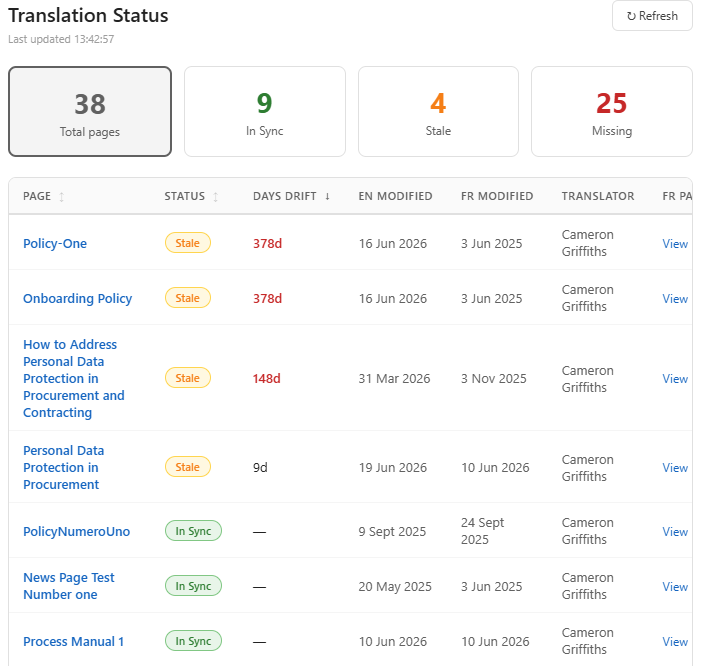
The web part then renders that list as an interactive dashboard with:
- Summary tiles — total page count, In Sync, Stale, and Missing counts, each clickable to filter the table
- Sortable table — page title (linked to the English source), status pill, days drift, English and French modified dates, translator name, and a direct link to the French page
- Colour-coded status — green for In Sync, amber for Stale, red for Missing
- Drift highlighting — days drift shown in red when over 30 days, drawing immediate attention to the most overdue pages
- Refresh button — reloads data from the list on demand
The web part does not perform the drift calculation itself — that responsibility stays with the PowerShell script, which is designed to run on a schedule (or manually as needed) and update the list. This separation keeps the web part fast and simple, with no heavy processing at render time.
Prerequisites
- SharePoint Framework development environment
- PnP.PowerShell 3.x for the companion scripts
- TranslationDrift list provisioned on the target site — use the Create-TranslationDriftList.ps1 script
- TranslationDrift list populated — run Get-TranslationDrift.ps1 to scan pages and populate the list
- Site Pages library with multilingual pages configured using SharePoint's native multilingual pages feature
- Site owner or SharePoint administrator permissions to deploy the web part
Web Part Properties
The web part exposes two configurable properties via the property pane:
| Property | Default | Description |
|---|---|---|
| List name | TranslationDrift | The name of the list to read from — change if you've deployed the list under a different name |
| Stale threshold (days) | 7 | Number of days drift before a page is considered Stale rather than In Sync |
Deployment
1. Deploy to App Catalog
Upload the .sppkg to your tenant App Catalog (/sites/appcatalog/AppCatalog). When prompted, choose whether to deploy tenant-wide or site-by-site depending on how many sites you want to surface the dashboard on.
2. Add to site
Go to Site Contents on the target site → Add an app → find translation-drift-dashboard → install. Then add the web part to any page via the web part picker — search for "Translation Drift".
3. Configure
Open the property pane and confirm the list name matches your deployed TranslationDrift list. Adjust the stale threshold if your organisation's translation SLA differs from the default 7-day window.
The Companion Scripts
This web part is part of a three-piece translation governance toolkit:
- Create-TranslationDriftList.ps1 — provisions the TranslationDrift list with all required columns. Run once per site before populating data.
- Get-TranslationDrift.ps1 — scans Site Pages, calculates drift, and populates the list. Run on demand or on a schedule via Azure Automation for a continuously updated dashboard.
Both scripts are available on the scripts page.
Governance Use Cases
- Monthly translation review — run the drift script at the start of each month, open the dashboard, filter to Stale and Missing, and use it as the agenda for a translation review conversation with content owners
- Translator accountability — the translator name is the first Site Owner name as identified by the script
- Content audit support — the Missing status identifies pages that have never been translated, which may reflect deliberate decisions (content only relevant to English-speaking users) or gaps that need to be addressed. Either way, making them visible is the first step to governing them intentionally
- Pre-launch checklist — before a major intranet launch or refresh, run the drift script and use the dashboard to confirm translation completeness across all published pages
Built With
- SharePoint Framework (SPFx) with React
- PnP JS (
@pnp/sp) for SharePoint list data access - TypeScript
- Inline styles — no CSS framework dependency