Lesson 1: Permission Fundamentals
Understanding SharePoint's permission model and the four core permission levels
📋 Introduction to SharePoint Permissions
SharePoint permissions control who can access your sites, libraries, and documents. Understanding these fundamentals is crucial for ensuring security while enabling collaboration in your organisation.
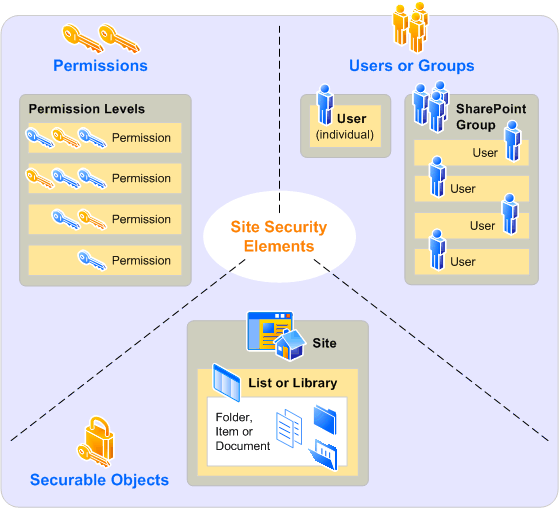
👨💼 Who Can Manage SharePoint Permissions?
Important: You need appropriate permissions yourself before you can manage permissions for others. Here's who can do what:
👑 Site Owners (Full Control)
Can do everything (including breaking and deleting things):
- Add/remove users from all groups
- Create new groups and permission levels
- Break inheritance and set unique permissions
- Access all site settings and configurations
- Grant or revoke Site Owner rights to others
🔧 Site Members with Edit Rights
Limited permission management:
- Share individual documents and folders
- Create sharing links (if enabled by site owners)
- Cannot access Site Permissions page
- Cannot create groups or modify site-level permissions
❌ Cannot Manage Permissions
Users with Read or Contribute only:
- Can view content they have access to
- Cannot share with others
- Cannot access permission settings
- Cannot see who has access to what
💡 How to Check Your Permission Level
- Go to your SharePoint site
- Click the Settings gear (⚙️) in the top right
- Look for "Site Permissions" - if you see this option, you're a Site Owner
- If you don't see it - you have limited permissions and will need to request Site Owner access to manage permissions
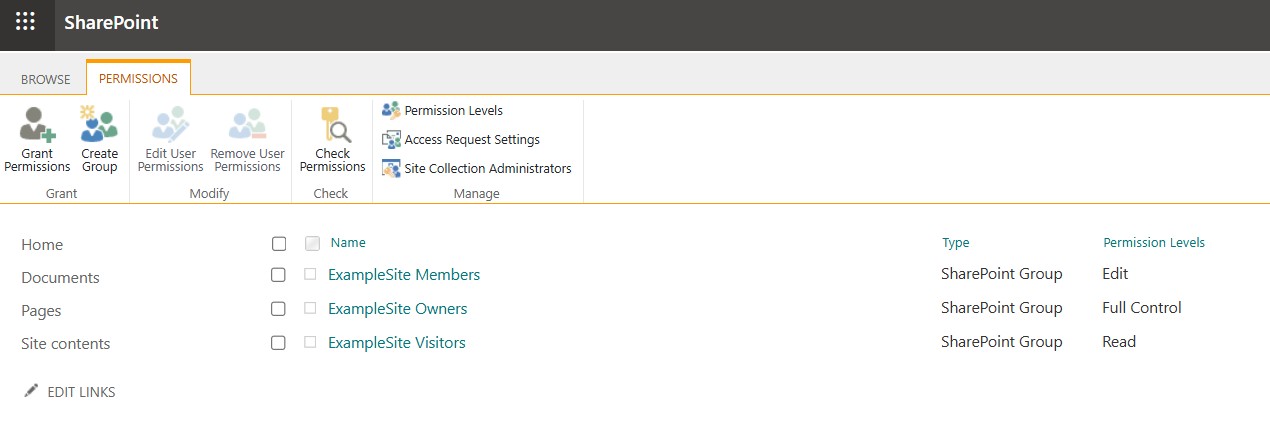
🔐 The three Core Permission Levels
SharePoint uses three primary permission levels that cover most business scenarios. Each level includes all capabilities of the levels below it.
🎨 Additional Permission: Design
Who needs Design permission: Users who need to be approvers or edit templates (who are not site owners)
What Design permission includes:
- Everything from Edit permission
- Approve or reject content in approval workflows
- Edit site templates and master pages
- Modify site themes and branding
- Configure web parts and page layouts
- Manage site columns and content types at site level
🔄 Understanding Permission Inheritance
Permission inheritance is SharePoint's way of automatically applying permissions down through the site hierarchy. This creates a cascading effect that simplifies permission management.
How Inheritance Works:
- Site Level: Permissions set at the site level automatically apply to all libraries and lists
- Library Level: Libraries inherit from the site, but can have unique permissions
- Folder Level: Folders inherit from their parent library
- Item Level: Individual files inherit from their parent folder
Breaking Inheritance - When and Why
Sometimes you need to break inheritance to create unique permissions for specific content:
- Sensitive documents: HR files, financial records, client confidentials
- Project-specific content: Materials for external client projects
- Department restrictions: Marketing materials only for marketing team
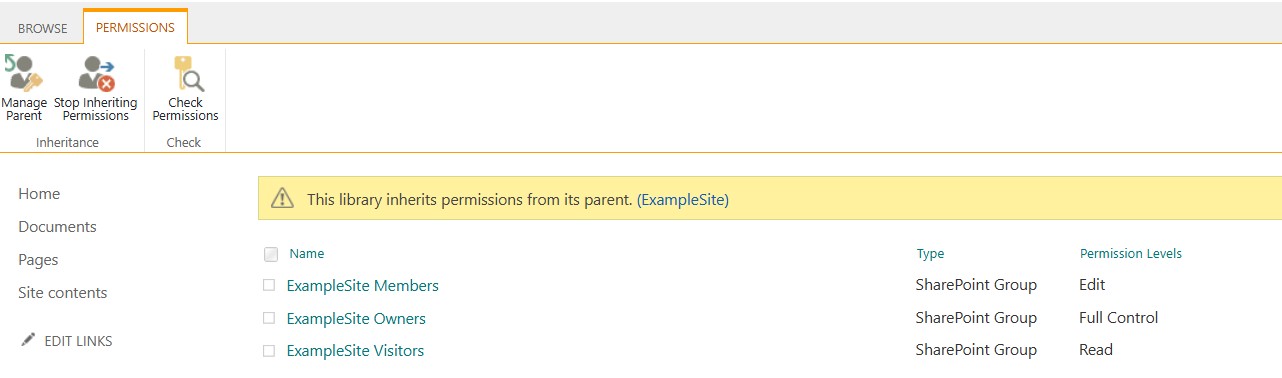
🔓 Understanding Unique Permissions
Unique permissions in SharePoint Online allow specific users or groups to have distinct access levels that override the default inherited permissions. When you create unique permissions, you "break inheritance" and can customise access for a particular site, library, folder, or file.
🎯 What Happens When You Break Inheritance?
- Copy current permissions: SharePoint creates a copy of the inherited permissions
- Stop automatic updates: Changes at higher levels no longer affect this item
- Enable custom control: You can now add, remove, or modify permissions independently
- Create unique access: Set different permission levels for specific users or groups
Common Valencia Business Scenarios for Unique Permissions:
📁 Confidential HR Documents
Scenario: HR folder within general company site
Solution: Break inheritance on HR folder, remove general access, add only HR team
Result: Only HR staff can access sensitive documents
🤝 Client Collaboration
Scenario: Specific project folder for external client
Solution: Break inheritance, add client with Read/Edit access
Result: Client can collaborate without accessing other projects
📊 Executive Reports
Scenario: Monthly reports within department site
Solution: Break inheritance, limit to managers and executives
Result: Sensitive financial data protected from general staff
Step-by-Step: How to Create Unique Permissions
- Navigate to the item: Library, folder, or file you want to secure
- Access permissions: Click the "..." menu → Manage Access
- Stop inheriting permissions: Click "Stop inheriting permissions"
- Modify access: Add/remove users, change permission levels
- Test access: Verify the permissions work as expected
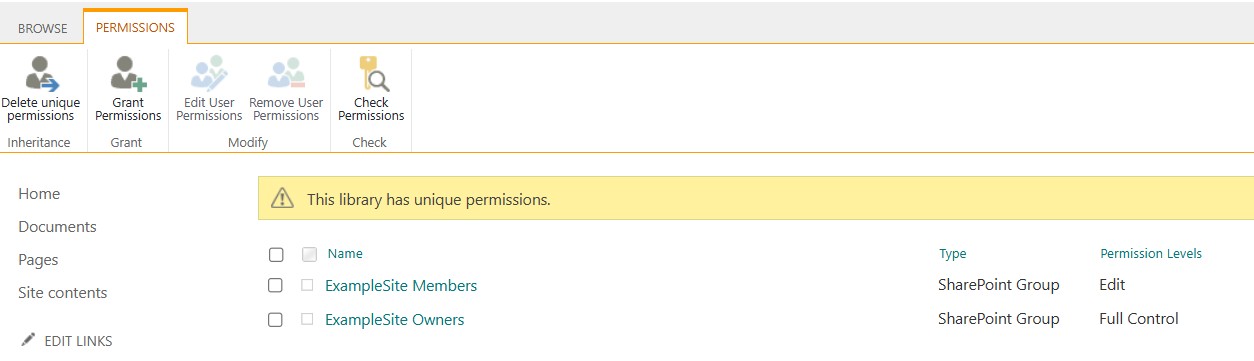
⚠️ Important Considerations for Unique Permissions
🚨 Unique Permissions Are NOT Best Practice
Unique permissions should be avoided in most scenarios and used only when absolutely necessary. They become exponentially more complex and unmanageable as organizations grow.
Major Issues in Large Organizations:
- Exponential complexity: Each unique permission creates a management burden that multiplies across thousands of items
- Performance degradation: Sites with many unique permissions become slower and less responsive
- Security vulnerabilities: Forgotten unique permissions create unintended access paths
- Audit nightmares: Nearly impossible to track and report on access across large organizations
- User confusion: Inconsistent access patterns frustrate users and reduce productivity
- Administrative overhead: Requires constant monitoring and maintenance by IT teams
- Minimize usage: The less broken inheritance you have, the better - avoid whenever possible
- Document everything: Every unique permission must have business justification
- Regular audits: Monthly reviews to remove unnecessary unique permissions
- Prefer alternatives: Use separate sites or libraries instead of breaking inheritance
- Monitor closely: Set up alerts for new unique permissions
How to Identify Items with Unique Permissions
Look for these visual indicators in SharePoint:
- Permissions icon: Items with unique permissions show a special permissions icon
- "Manage Access" panel: Will show "This item has unique permissions"
- Site Settings report: Use "Permissions" report to see all items with broken inheritance
- Monthly audits: Review and justify every unique permission
- Documentation: Maintain tracking system for location, reason, owner, and review date
- Approval process: Require management approval before breaking inheritance
- Quarterly cleanup: Actively remove unnecessary unique permissions
- Growth monitoring: Set alerts when unique permissions exceed safe limits
👥 Default SharePoint Groups
Every SharePoint site comes with three pre-configured groups that map to common business roles:
👑 Site Owners
Permission: Full Control
Typical users: IT administrators, site managers
👥 Site Members
Permission: Edit (or Contribute)
Typical users: Regular team members, active contributors
👁️ Site Visitors
Permission: Read
Typical users: External stakeholders, read-only users
🧠 Knowledge Check
Scenario: Maria from your marketing team needs to create campaign documents and edit content created by her colleagues, but shouldn't be able to change the site structure or manage permissions. Which permission level is most appropriate?
🎯 Key Takeaways
- SharePoint uses four primary permission levels: Read, Contribute, Edit, and Full Control
- Permissions inherit down the hierarchy (site → library → folder → item)
- Default groups (Owners, Members, Visitors) cover most common scenarios
- Break inheritance only when necessary for security or business requirements
- Always follow the principle of least privilege - give users the minimum access they need