Running a SharePoint multilingual site? It´s tempting to ask Copilot to do the page translations. "Translate this page to French" sounds like exactly the job it was made for. I ran some tests on a SharePoint test site, and the outcomes were more subtle than simply Yes or No.
The Short Answer
So it turns out Copilot in SharePoint can edit and insert the translated text for a page, but it can´t create a linked translation page via the multilingual SharePoint feature. Whether it can edit a page depends on where you open that page from. The best results came from a combination of approaches, create the translated pages yourself using the native functionality (Manually or via PowerShell), and then ask Copilot to translate the content.
What I Tested
I used Copilot in SharePoint on a test site with multilingual pages switched on, with English as the default language and French added.
What Happened
1. A Vague Request Overwrites the English
I asked Copilot to "translate this page". It translated the content and replaced the English text with French, in place, and created a new version. There was no warning and no second page. If you meant "create a French version", you've just replaced your original. Version history lets you restore it. The page also showed as a draft afterwards, human-in-the-loop to publish the page.
2. A Copy Made by Copilot Is Not a Translation
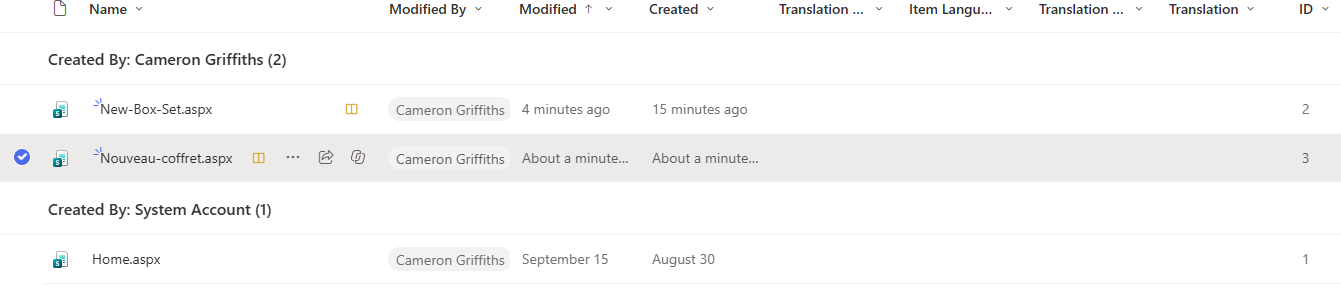
When I asked for a new French page and told it to leave the English alone, it created a second page with French content and a French file name. But the two pages are not linked. In the Site Pages library, the translation columns (translation status, item language, translation group) were blank. SharePoint doesn't know the pages are related, so there's no language picker and no translator notification.
3. Copilot Can't Create a Linked Translation
When I asked it to use SharePoint's multilingual translation feature, it said it couldn't. The page action available to it only supports editing or copying, not the native translation workflow, and it didn't create an unlinked copy as a substitute.
4. Where You Open the Page Decides Whether It Can Edit It
This was the surprising one. I created a French translation with SharePoint's own feature. Then I asked Copilot to update the content, in two ways:
- Opening the page from the language toggle on the English page: Copilot couldn't edit it. It translated the text into the chat window, and then told me it couldn't insert it into the page.
- Opening the page directly from its language folder in the Site Pages library: Copilot translated and edited the page without any trouble. I didn't even need to switch to edit mode.
The same page, the same request, the same Copilot. It seems to depend on where the page is opened from.
5. Copilot Can Say It's Done When It Isn't
On the failing route, Copilot reported that the page had been translated into French. The content on the page was still English. When I pointed that out, it agreed and explained that the English text block wasn't available in the editable content. Other times it told me straight away that no changes had been applied.
6. Copilot Changes the Words, Not the Page's Place in the Translation Set
The Item Language column belongs to the multilingual feature and marks which version of the set a page is. Copilot editing the content doesn't change it. A page marked French stays the French version even if its content is now English, and nothing will warn you.
7. The Wording Isn't Repeatable
Copilot gave me different French for the same English text at different times. A translation needs a human read before it's published.
The Workflow That Worked
- Create the translation with SharePoint's multilingual feature. This creates the linked page and starts the tracking.
- Open the French page directly from its language folder in the Site Pages library.
- Ask Copilot to translate the content on that page.
- Read the page itself. Don't trust the message. Check that the text is in the right language and that nothing is left in English.
- Publish. Have a French speaker review it first for anything important.
If Copilot says it can't edit the page, translate in the chat window and paste the text in yourself.
If Copilot Overwrote Your Original
Open version history on the page and restore the version from before the change. Everything after it stays in the history, so nothing is lost. It's the same safety net as in my post on Copilot Edited My Document and Version History Says I Did It: How to Check the Work.
Common Questions
Can Copilot replace SharePoint multilingual pages?
No. It can't create a linked translation, so you'd lose the language picker, translator notifications and out-of-date tracking. Use it to help with the wording instead.
Will "translate this page" overwrite my English?
In my testing, yes, if you phrase it that vaguely. Say clearly what you want, and check version history afterwards.
Why did Copilot say it couldn't edit my translated page?
In my testing, it depended on where I opened the page from. Open it directly from its language folder in Site Pages and try again.