Building a Multilingual Custom Search Page with PnP Modern Search
Part 1 — Information Architecture and Prerequisites
This four-part guide walks through building a custom, controlled search experience in SharePoint Online using PnP Modern Search, culminating in a PnP Modern Search extensibility library built as a standalone SPFx project. The end result is a search page that returns results scoped to specific content types, displays cards styled per content type, and filters using managed metadata taxonomy with labels that switch language based on the user's locale.
What We Are Building
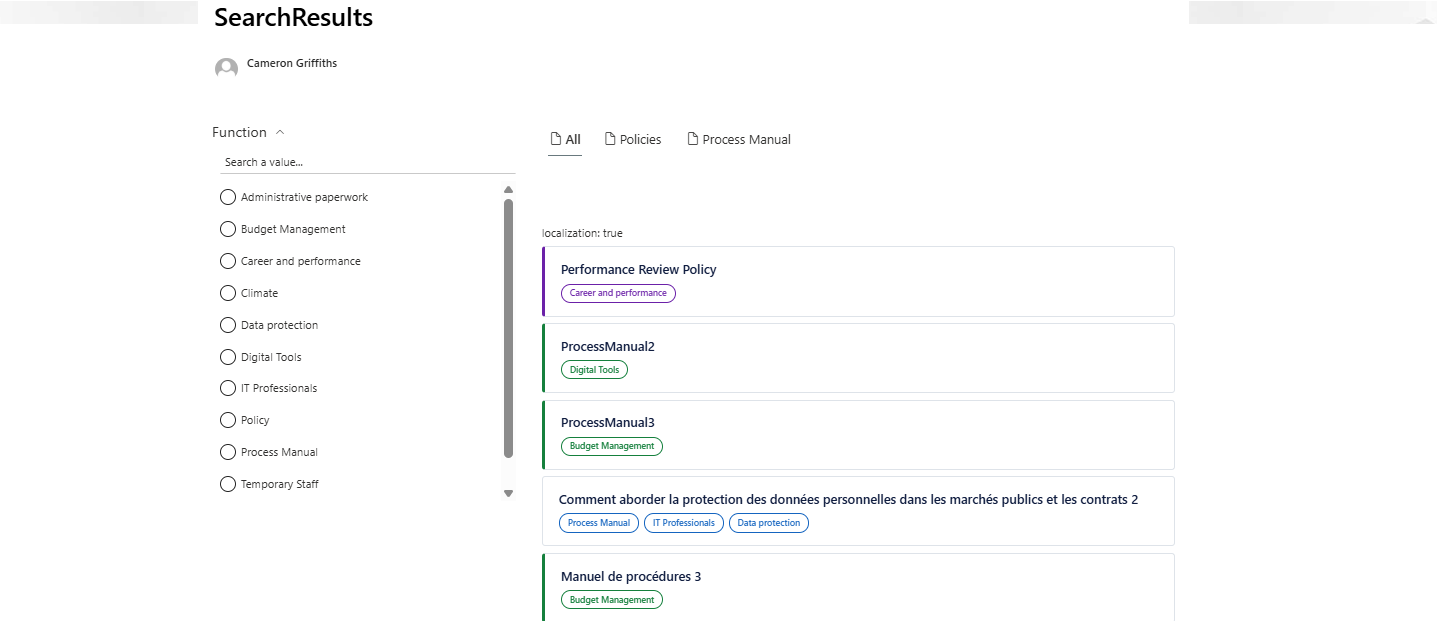
Features at a glance:
- Three search verticals: All, Policies, Process Manual
- Taxonomy-based filter with multilingual label support
- Distinct card styles per content type — purple left border for Policies, green for Process Manuals
- Function taxonomy pill on every result card
- Multilingual — filter labels and taxonomy pills switch language automatically
This first part covers everything you need to have in place before touching a web part. Get this right and the build in Part 2 is straightforward. Skip any of it and you will hit problems that are difficult to diagnose.
Part 1 — Information Architecture and Prerequisites
Multilingual Site Setup
Before anything else, confirm that the multilingual pages feature is enabled on your site. This is what allows SharePoint to create and associate translation pages with source pages.
Enable multilingual pages:
Site Settings → Language Settings → Enable pages and news to be translated into multiple languages → add your working languages (e.g. French)
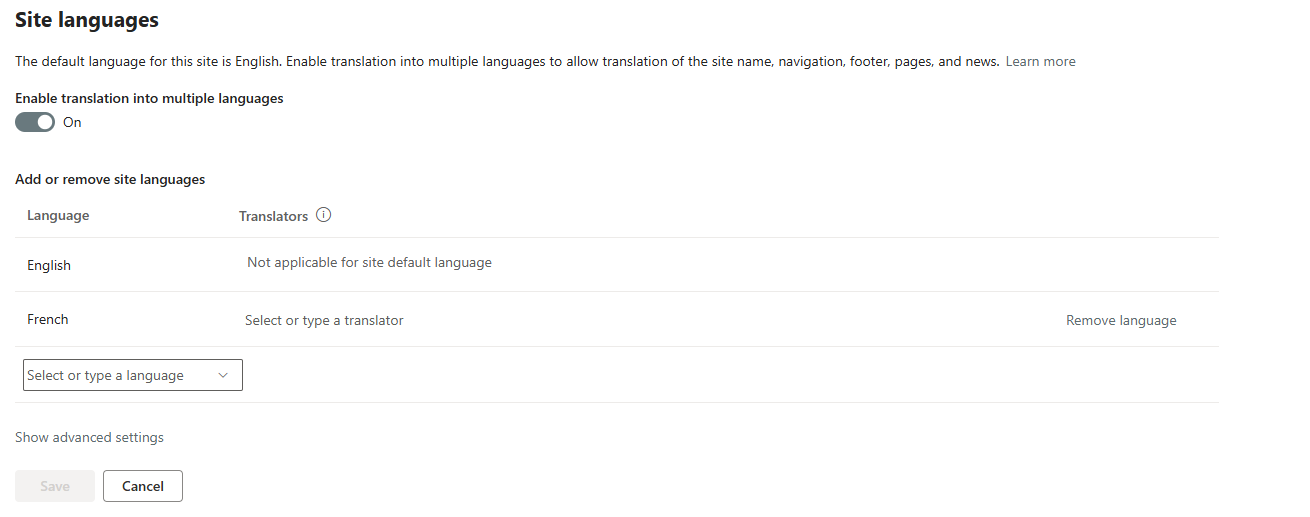
Once enabled, a Translations column appears in the Site Pages library, and each page can have associated translation pages created in the working languages.
Term Store Setup and Multilingual Translations
The multilingual filter experience depends entirely on the Term Store having translations configured for each term. Without translations the filter will display term labels in the site's default language regardless of the user's locale.
Verify your Term Store has translations:
SharePoint Admin Center → Content services → Term store → navigate to your term group and term set → click each term → Translations and synonyms tab
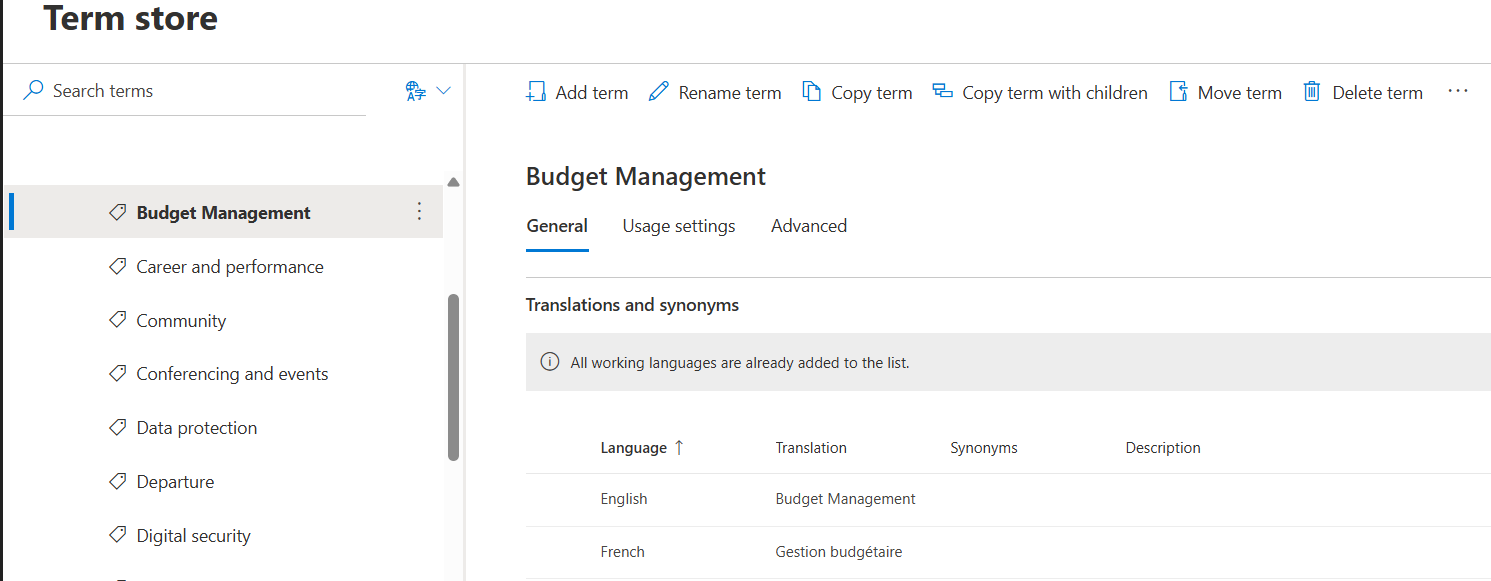
Quick verification using the locale URL parameter:
Append ?Locale=fr-FR to any SharePoint page URL to switch the UI to French for that session. Navigate to a page with a managed metadata column — if the term picker shows French labels your Term Store translations are correctly configured.
If translations are missing, add them in the Term Store before proceeding. Every term you want to appear in French in the search filters needs a French label configured. PnP Modern Search reads these translations directly from the Term Store at render time.
Content Types
Define the content types that your search page will return. In this guide we use three:
| Content Type | Description | Card Style |
|---|---|---|
| Policy | Formal organisational policies | Purple left border |
| ProcessManual | Step-by-step process documentation | Green left border |
| SupportingDocumentation | Reference and supporting material | Base card, no border |
Content types should be created at the tenant level and applied to the relevant document libraries or page libraries.
The content type names are used in the KQL query template to scope each search vertical to its content. We use ContentTypeId rather than ContentType name in queries — the ID is stable even if the display name is changed.
Find the ContentTypeId for each content type:
Library Settings → click the content type name → the ID appears in the URL as the ctype= parameter.
Or via PnP PowerShell:
Connect-PnPOnline -Url "https://yourtenant.sharepoint.com/sites/yoursite" -Interactive -ClientId "your-client-id"
Get-PnPContentType | Select-Object Name, Id | Sort-Object Name
Note the full ID for each content type — you will need these in Part 2 when configuring the query templates.
Managed Properties: The Critical Step
This is the step most commonly missed and the hardest to diagnose when wrong. Getting it right before building the search page saves significant troubleshooting time.
Why This Step Is Different for Multilingual
For a standard (non-multilingual) search refiner, mapping ows_OrgClassification to RefinableString110 at site collection level is sufficient. The refiner displays the term label as a text string.
For multilingual refiners — where the filter labels must switch language based on the user's locale — PnP Modern Search requires the ows_taxId_ variant of the crawled property, mapped at tenant level. This is because the ows_taxId_ property stores the term ID in a format PnP can use to look up the correct translation from the Term Store at render time.
The Managed Properties You Need
| Crawled Property | Maps To | Purpose |
|---|---|---|
ows_OrgClassification |
RefinableString110 |
Term label in default language |
ows_taxId_OrgClassification |
RefinableString111 |
Term ID for multilingual refiner |
How to Map at Tenant Level
- Go to SharePoint Admin Center → Search → Manage Search Schema
- Click Crawled Properties
- Search for the crawled property name (e.g. ows_taxId_OrgClassification)
- If the property appears greyed out with no mapped property shown, it is unmapped — click it to open
- Under Mappings to managed properties, click Add a mapping
- Search for and select your target RefinableString (e.g. RefinableString111)
- Save

Trigger a Reindex
After mapping, changes do not take effect until content is recrawled. Trigger a reindex:
- Library-level (fastest for testing): Library Settings → Advanced Settings → Reindex Document Library
- Site collection level: Site Settings → Search and offline availability → Reindex site
Tenant-level crawls can take several hours. Plan this step ahead of your build session.
Create the Custom Search Page
Create a blank SharePoint page that will serve as the custom search results page.
- Go to Site Pages → New → Page
- Choose a blank layout
- Name it something clear — e.g. Search-Results or Recherche for a French site
- Publish the page
What You Have at the End of Part 1
Before moving to Part 2 you should have:
- Multilingual pages feature enabled with working languages configured
- Term Store translations in place and verified with ?Locale=fr-FR
- Content types defined with ContentTypeIds noted
- ows_OrgClassification mapped to RefinableString110 at site collection level
- ows_taxId_OrgClassification mapped to RefinableString111 at tenant level
- Reindex triggered and completed
- Blank search page created
With all of this in place, Part 2 covers adding and configuring the PnP Modern Search web parts, building the card templates, and validating the multilingual filter behaviour.
Related Scripts
- Add Navigation Translations — Add multilingual translations to SharePoint navigation nodes via PnP PowerShell
- Create Bilingual Navigation — Build a complete EN/FR Quick Launch navigation from a JSON configuration file
- Create Translations of Pages in Folder — Bulk create French translation pages for existing pages in a folder
- Create Term Store — Script a Term Store term group and term sets from scratch
- Create Multilingual Term Store — Provision term groups, term sets, and terms with per-locale translated labels from a JSON configuration file