SharePoint Online's native search experience is genuinely capable. For most organisations it handles general content discovery well — users type a query, results appear, content is found. But for some use cases the out-of-the-box experience falls short: a controlled, scoped search over a specific set of documents where classification, content type, and language all need to be surfaced explicitly in the result cards. Policies and process manuals are the classic example. Users aren't browsing the whole intranet — they are looking for a specific type of document, they want to know immediately what kind of document they've found, and in a multilingual organisation they need the taxonomy labels in their language.
This is the use case this series addresses. It isn't a replacement for global site search — it's a purposefully designed search experience for a specific section of content where branding and classification matter as much as recall.
What We Built
A custom PnP Modern Search page scoped to three content types — Policies, Process Manuals, and Supporting Documentation — with:
- Three search verticals: All, Policies, Process Manual
- Taxonomy-driven filter panel with labels that switch language automatically
- Distinct card styles per content type — green left border for Policies, purple for Process Manuals
- Taxonomy classification pills on every card that display in the user's language
The experience is deliberately closed — it only surfaces content tagged with the relevant content types and taxonomy values. That constraint is a design choice, not a limitation.
Why Scoped Search Makes Sense for Policy Content
General site search returns everything — news articles, team pages, project documents, forms, and policies all mixed together. For someone looking for the HR onboarding policy specifically, that's noise.
A scoped experience filters that noise by design. By restricting the result set to specific content types and surfacing the taxonomy classification visibly on each card, users can orient themselves immediately — they know they're looking at policy content, they can see the functional area at a glance, and the filter panel lets them narrow further without a second query.
The coloured left border on each card reinforces the content type — not because it is strictly necessary, but because it helps the user locate what they are looking for faster.
The Multilingual Layer
For a monolingual intranet this kind of scoped search experience is relatively straightforward to build with PnP Modern Search. The multilingual layer is where it gets technically interesting.
SharePoint's Term Store supports translations for every term — each term can have a label in English, French, German, and so on. When a user's locale is set to French, the expectation is that taxonomy labels appear in French throughout the experience. PnP Modern Search can deliver this, but it requires the right managed property mapping.
The key distinction: ows_ versus ows_taxId_
When SharePoint crawls a page with a managed metadata column, it creates two crawled properties:
ows_OrgClassification— the plain text term label in the default languageows_taxId_OrgClassification— the term GUID and locale label data
For standard search refiners, ows_OrgClassification mapped to a RefinableString is sufficient. For multilingual refiners — where filter labels and card pills must switch language based on the user's locale — you need ows_taxId_OrgClassification mapped at tenant level. PnP Modern Search uses the taxId property to look up the correct translation from the Term Store at render time.
In this implementation ows_taxId_OrgClassification is mapped to RefinableString111 at tenant level in the SharePoint Search Schema. This single mapping unlocks both the multilingual filter labels and the multilingual card pills.
AutoRefinableString111
Once RefinableString111 is mapped and indexed, PnP Modern Search provides a built-in Handlebars helper — {{AutoRefinableString111}} — that handles the locale-aware label resolution automatically.
In the card template, where you might previously have written a manual expression to split the raw taxonomy value and extract the label, you now write:
<span class="card-pill">{{AutoRefinableString111}}</span>PnP reads the value of RefinableString111 from the search result, detects the current page locale, resolves the correct language label from the Term Store translation data, and renders it. Switch the locale to French via ?Locale=fr-FR and the pills switch — "Onboarding" becomes "Intégration", "Procurement" becomes "Approvisionnement", "Training" becomes "Formation".
The filter panel does the same. With the filter field set to RefinableString111 and Enable Localization turned on in the data source, the filter labels switch language automatically without any additional template logic.
The Term Store Is the Foundation
None of this works without translations in the Term Store. {{AutoRefinableString111}} can only resolve a French label if there is a French label to resolve — which means every term in your taxonomy needs a French translation configured before the multilingual experience comes together.
For small taxonomies this is straightforward to do manually in the Term Store UI. For larger taxonomies or repeatable deployments across multiple environments, the PnP PowerShell Set-PnPTerm cmdlet with the -Name and -Lcid parameters handles it programmatically. A full scripted approach using a JSON-driven configuration file is covered in the Multilingual Term Store script.
The Implementation
The full implementation is covered across three technical pages:
Part 1 — Information Architecture and Prerequisites — multilingual site setup, Term Store configuration, content types, and managed property mapping.
Part 2 — Verticals, Filters, and Card Templates — adding and connecting the web parts, configuring verticals with ContentTypeId scoping, building the card templates, and connecting the page to site search.
Part 3 — Multilingual Tag Resolution and Card Updates — the OrgClassification column, RefinableString111 mapping, Term Store translations, filter configuration, Tags slot setup, and the updated card templates using {{AutoRefinableString111}}.
What This Looks Like in Practice
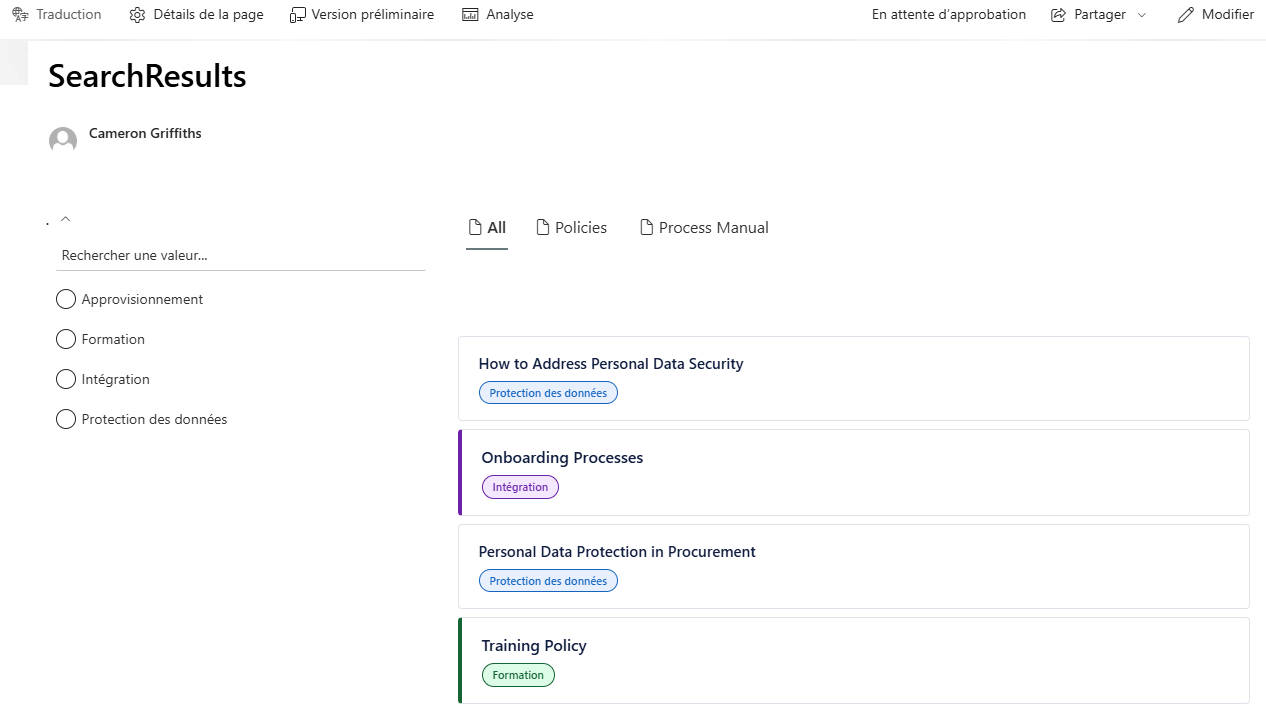
With everything in place, the experience for a French-speaking user is seamless. They land on the search page, the filter panel shows French taxonomy labels, the card pills show French classification terms, and the content type is immediately identifiable from the card border colour — all without any language toggle or manual switching beyond the standard SharePoint locale URL parameter.
It is a deliberate, designed experience rather than a default one. For the right use case — a structured document library in a multilingual organisation where classification and language precision matter — it is significantly better than what general site search delivers out of the box.