Building a Multilingual Custom Search Page with PnP Modern Search
Part 3 — Multilingual Tag Resolution and Card Updates
Part 1 covered the information architecture and prerequisites. Part 2 covered building the search page, configuring the web parts, and creating the card templates. This part covers the final layer — wiring up multilingual taxonomy tags so that filter labels and card pills switch language automatically based on the user's locale.
What We Are Completing
At the end of Part 2 the search page was fully functional with content type scoping, card templates, and result types. The one remaining piece was the taxonomy filter and card pills — both were displaying term labels in the site default language regardless of the user's locale.
This part adds:
- A managed metadata site column (OrgClassification) bound to a term set with French translations
- Correct managed property mapping at tenant level (ows_taxId_OrgClassification → RefinableString111)
- Filter web part wired to RefinableString111
- Card templates updated to use {{AutoRefinableString111}} for locale-aware label display
The OrgClassification Site Column
Create a new managed metadata site column and bind it to your term set. The column name matters — use something clean and unambiguous.
Column Settings
- Name: OrgClassification
- Type: Managed Metadata
- Term set: your taxonomy term set (in this guide, SearchTest within SearchTest_Taxonomy)
- Allow multiple values: yes, if pages can belong to more than one category
Apply the column to the content types used by your pages — in this guide, the Policies and Process Manuals content types.
Tag your pages with values from the term set. In this guide the terms are: Travel, Onboarding, Data protection, Career and performance, Health, Training, Procurement — each with a French translation configured in the Term Store.
Managed Property Mapping
Once pages are tagged and a crawl has run, two crawled properties are created automatically:
| Crawled Property | Contains |
|---|---|
ows_OrgClassification |
Plain text term label (English only) |
ows_taxId_OrgClassification |
Term GUID and locale label data — required for multilingual |
Map both at tenant level in SharePoint Admin Center → More features → Search → Manage Search Schema:
| Crawled Property | Managed Property | Purpose |
|---|---|---|
ows_OrgClassification |
RefinableString110 |
Plain label — for display if needed |
ows_taxId_OrgClassification |
RefinableString111 |
Multilingual refiner and card pills |
After saving the mappings, trigger a reindex of the Site Pages library:
Connect-PnPOnline -Url "https://yourtenant.sharepoint.com/sites/yoursite" -Interactive -ClientId "your-client-id"
Request-PnPReIndexList -Identity "Site Pages"
Allow time for the crawl to complete. Verify the mapping is working via the REST API:
https://yourtenant.sharepoint.com/sites/yoursite/_api/search/query?querytext='RefinableString111:"Onboarding"'&selectproperties='Title,RefinableString111'A RowCount greater than zero confirms values are indexed correctly.
Term Store Translations
For the multilingual filter labels to switch language, every term in the term set needs a translation configured in the Term Store.
Navigate to SharePoint Admin Center → Content services → Term store → your term group → term set → click each term → Translations and synonyms tab → add the French label.
The translations can be added manually for small term sets, or via PnP PowerShell for larger taxonomies using Set-PnPTerm:
Set-PnPTerm `
    -Identity  $term.Id `
    -TermSet   "SearchTest" `
    -TermGroup "SearchTest_Taxonomy" `
    -Name      "Intégration" `
    -Lcid      1036
LCID 1036 is French. Repeat for each term. A full scripted approach for provisioning multilingual term sets from a JSON configuration file is covered in the Create Multilingual Term Store script.
Filter Web Part Configuration
In the Search Filters web part, update the filter to use RefinableString111:
- Display name: Function (or your preferred label)
- Filter field: RefinableString111
- Template: Checkbox
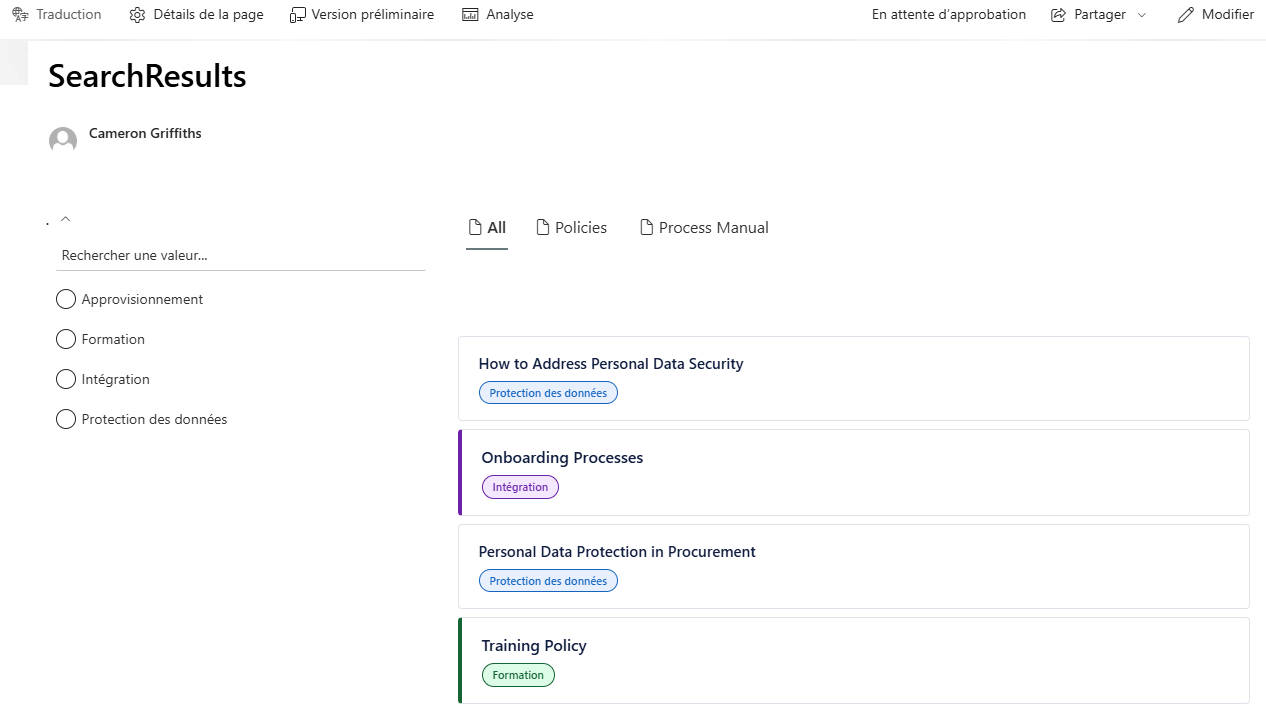
With localization enabled in the Search Results data source and French translations in the Term Store, the filter labels switch automatically when ?Locale=fr-FR is appended to the URL.
Tags Slot Configuration
In the Search Results web part data source, map the Tags slot to RefinableString111:
- Open the web part edit panel
- Go to Layout slots
- Find the Tags slot
- Change the slot field to RefinableString111
This makes RefinableString111 available in the card template via the Tags slot, and — critically — enables the {{AutoRefinableString111}} Handlebars helper.

Updated Card Templates
The AutoRefinableString111 Helper
{{AutoRefinableString111}} is a PnP Modern Search built-in Handlebars helper that:
- Reads the value of RefinableString111 from the search result
- Detects the current page locale
- Resolves the correct language label from the Term Store translation data
- Renders the label as text
It replaces the manual split/trim approach used in Part 2 for extracting labels from raw taxonomy values.
Base Card Template
The base card template used in the All vertical is updated to use {{AutoRefinableString111}} wrapped in a styled pill span:
{{#if (slot item @root.slots.Tags)}}
<div class="card-pills">
    <span class="card-pill">{{AutoRefinableString111}}</span>
</div>
{{/if}}
Policy Vertical Card (Green Border)
The inline card template for the Policies vertical uses a green left border and green pill styling:
<li style="background-color:#ffffff; border:1px solid #dee3e9; border-left:4px solid #166534; border-radius:4px; padding:16px 20px; display:flex; flex-direction:column; gap:8px; list-style:none;">
    <div style="font-size:16px; font-weight:600; color:#101d40;">
        <a href="{{slot item @root.slots.Path}}" target="_blank" rel="noopener noreferrer" style="color:#101d40; text-decoration:none;">
            {{slot item @root.slots.Title}}
        </a>
    </div>
    {{#if (slot item @root.slots.Tags)}}
    <div>
        <span style="display:inline-block; font-size:11px; font-weight:500; padding:2px 10px; border-radius:12px; line-height:1.6; white-space:nowrap; background-color:#dcfce7; color:#166534; border:1px solid #166534;">{{AutoRefinableString111}}</span>
    </div>
    {{/if}}
</li>
Process Manual Vertical Card (Purple Border)
The inline card template for the Process Manual vertical uses a purple left border and purple pill styling:
<li style="background-color:#ffffff; border:1px solid #dee3e9; border-left:4px solid #6b21a8; border-radius:4px; padding:16px 20px; display:flex; flex-direction:column; gap:8px; list-style:none;">
    <div style="font-size:16px; font-weight:600; color:#101d40;">
        <a href="{{slot item @root.slots.Path}}" target="_blank" rel="noopener noreferrer" style="color:#101d40; text-decoration:none;">
            {{slot item @root.slots.Title}}
        </a>
    </div>
    {{#if (slot item @root.slots.Tags)}}
    <div>
        <span style="display:inline-block; font-size:11px; font-weight:500; padding:2px 10px; border-radius:12px; line-height:1.6; white-space:nowrap; background-color:#f3e8ff; color:#6b21a8; border:1px solid #6b21a8;">{{AutoRefinableString111}}</span>
    </div>
    {{/if}}
</li>
These inline card templates are used in the individual Policies and Process Manual verticals — no result types needed since all results within those verticals are the same content type.
The End Result
With all steps complete, the search page delivers a fully multilingual experience:
- Filter labels switch language automatically based on ?Locale=fr-FR
- Card pills display the correct language label for each result
- Content type scoping works across all three verticals
- Card styles visually distinguish content types with coloured left borders
Related Scripts
- Create Multilingual Term Store — Provision term groups, term sets, and terms with per-locale translated labels from a JSON configuration file
- Create Term Store — Script a Term Store term group and term sets from scratch
- Add Navigation Translations — Add multilingual translations to SharePoint navigation nodes via PnP PowerShell
- Create Translations of Pages in Folder — Bulk create French translation pages for existing pages in a folder